
Keeping your journal up to date shouldn’t be a chore. With Auto-Sync, TraderLog now connects directly to your brokerage so new trades flow in automatically each morning.
What is Auto-Sync?
Auto-sync is a new feature in TraderLog that allows you to automatically import your trades from an external brokerage. Rather than manually inputting each trade or uploading a brokerage statement, once your account is linked, the system inserts all transactions automatically at the start of each morning.
In short, after a one-time setup, your trade data flows in automatically, leaving you more time to analyze and trade and less time on data entry.
Supported Brokerages
- Binance
- Coinbase
- E*Trade
- Interactive Brokers (IBKR)
- Kraken
- Robinhood
- Charles Schwab
- tastytrade
- Webull
We’ll continue expanding this list, stay tuned!
Setup Guide: Linking Your Brokerage
Here’s a step-by-step walkthrough to get your accounts connected.
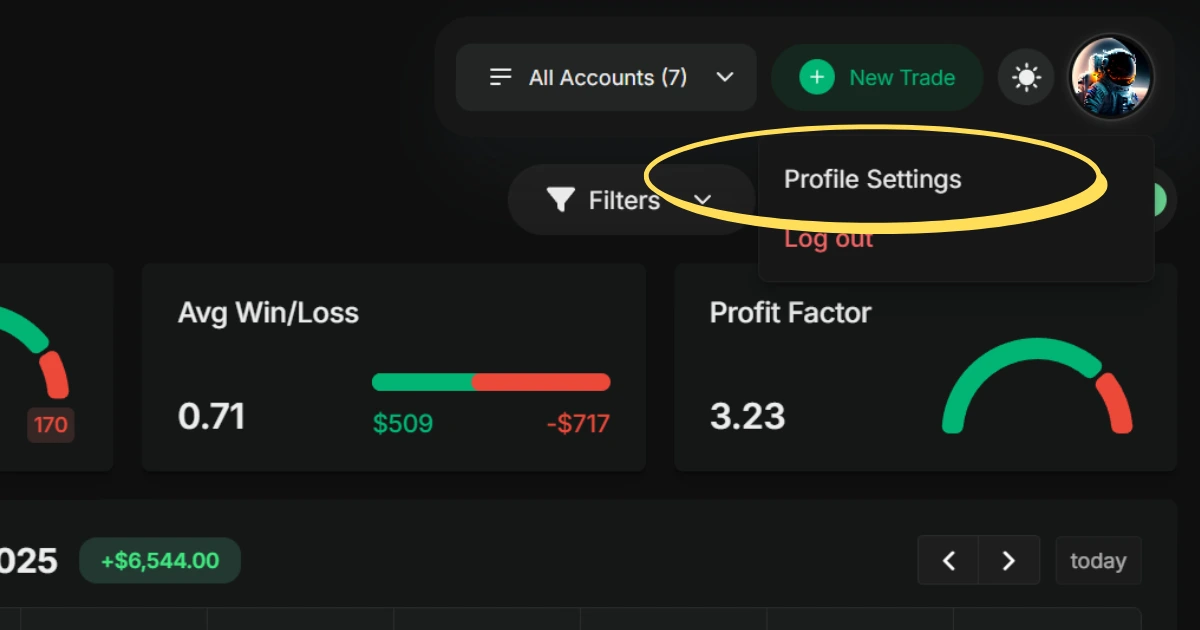
Start by navigating to your profile settings page:
- Click on your profile icon located in the upper right-hand corner.
- From the dropdown menu, select “Profile Settings.”
This is where you’ll find many of your application settings, account preferences and order defaults.
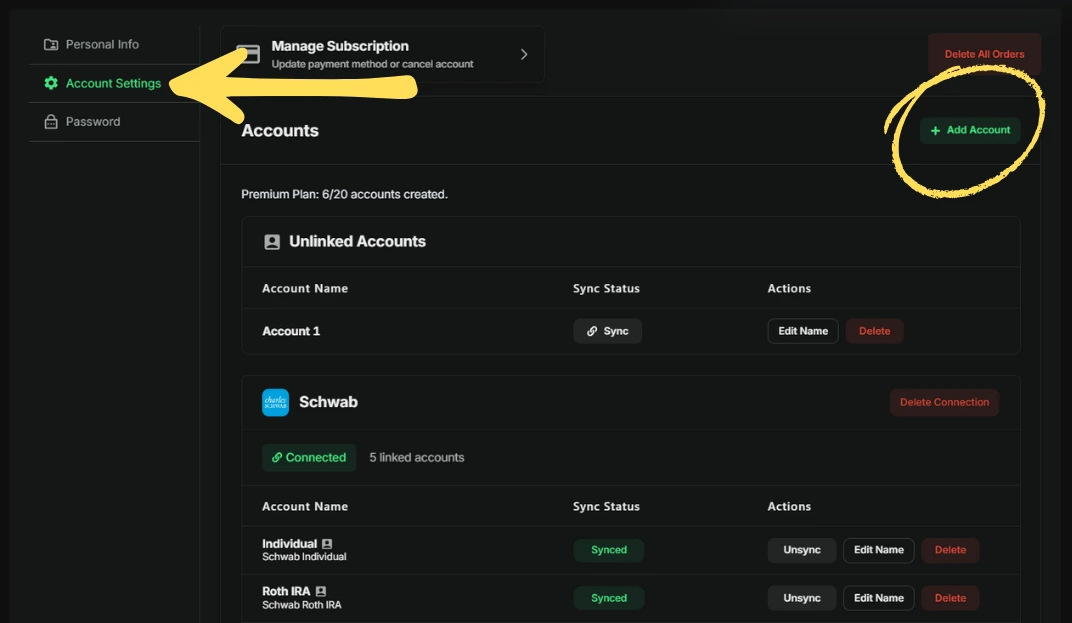
Step 2: Go to Account Settings and Click “+ Add Account”
In profile settings click on the “Account Settings” tab on the left-hand menu. This section shows:
- Unlinked accounts at the top (accounts created manually).
- Linked accounts below, including the broker name and connection status. You’ll also find actions to sync, unsync, edit, or delete existing connections.
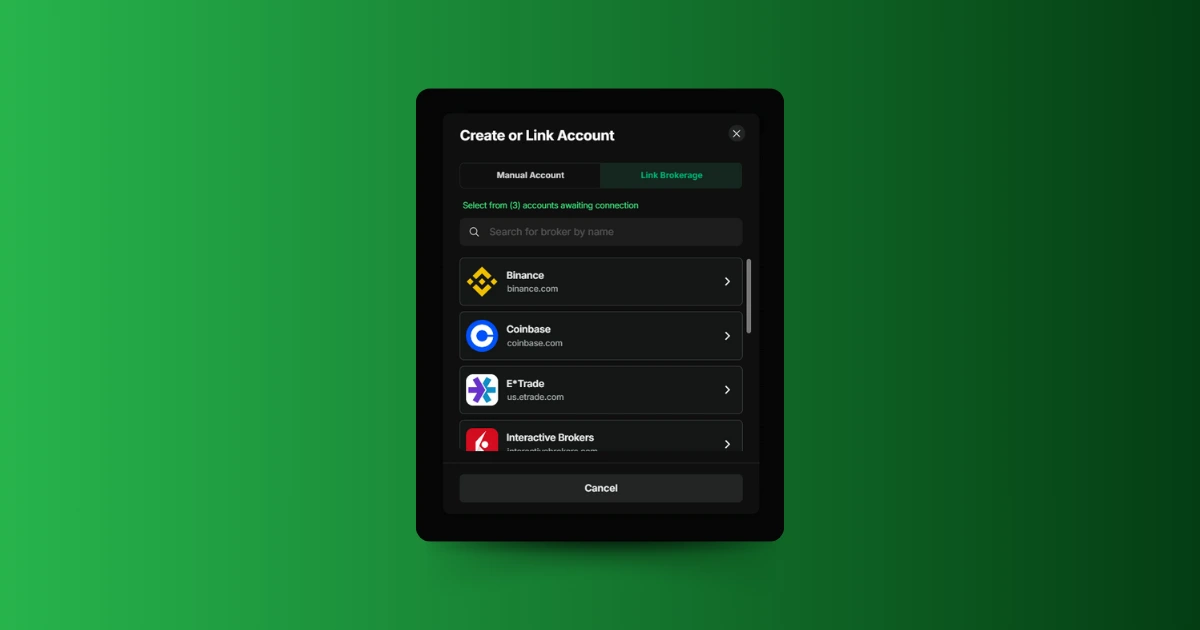
You’ll click the “+ Add Account” button in the top-right corner which opens a window to either create a manual account or link an external broker.
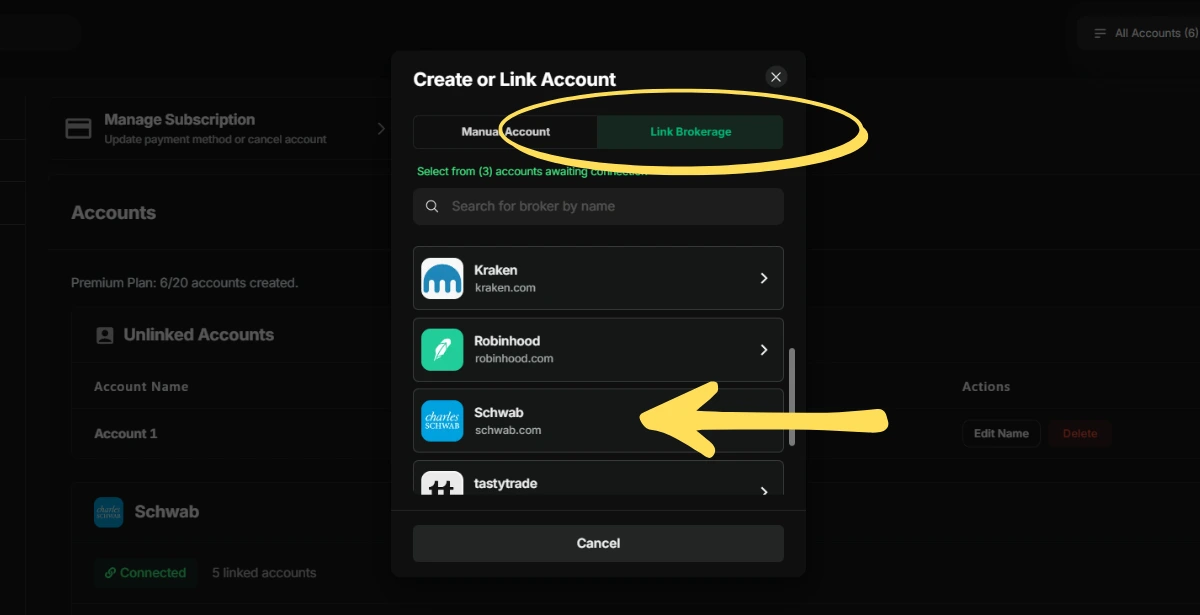
Step 3: Select “Link Brokerage” & Select Broker
You then select the “Link Brokerage” tab where you’ll see a full list of available brokerages supported by TraderLog. From here:
- Click on the broker you want to link.
- Follow the steps to complete the authentications process to view and sync your external brokerage accounts.
🔒 Note: TraderLog does not store your credentials. All authentication is handled securely by SnapTrade.
Once authentication is complete, the next step is selecting which of your brokerage accounts to link.
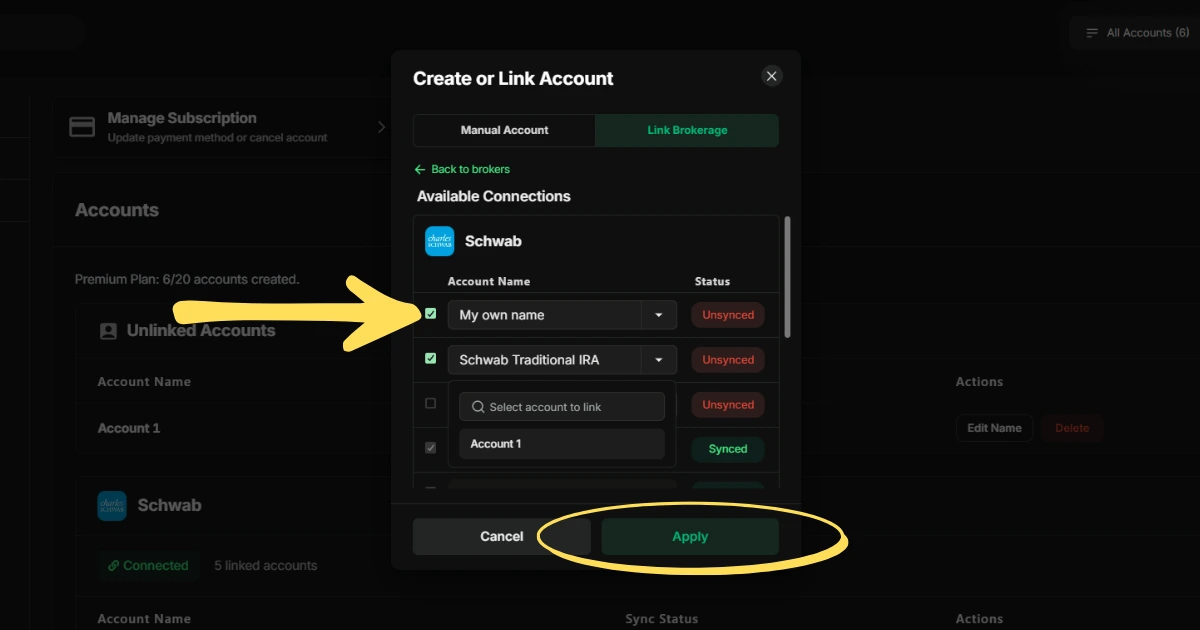
Step 4: Select and Link Your Brokerage Accounts
Once you’ve authenticated, you’ll see a list of account associated with that broker (e.g., Cash, Margin, IRA). Here’s what you’ll do:
- Check the box next to each account you want to link.
- Type your new name, use the default name, or select from the list of previously created unlinked accounts.
📌
Important: If you link a brokerage account to a previously created unlinked account all existing trade data remains intact. All future trades from the broker will automatically be inserted into that same account.
You can link one or multiple accounts at the same time and they’ll appear in your list of accounts once complete. Any unlinked accounts can always be synced later from the same window.
Fixing a Broken Connection
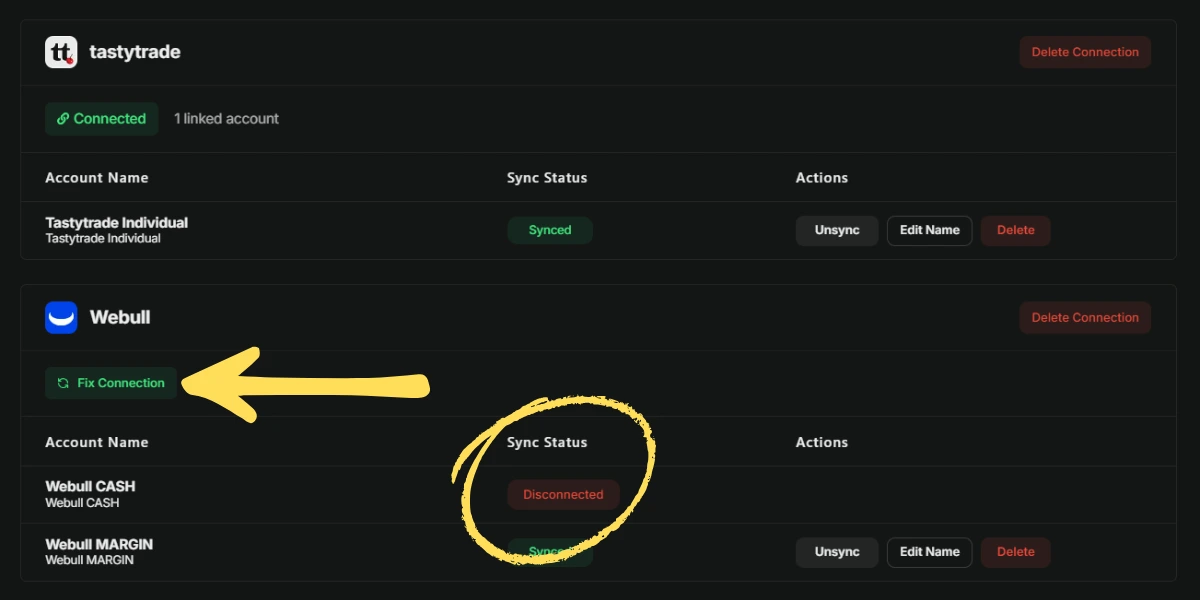
Sometimes, brokerage connections can break. Your broker may have updated their security settings, your link expired, or you changed your password. When this happens, Auto-Sync stops receiving your trades, but don’t worry, the fix is quick and easy.
- Navigate to Profile Settings: Click your profile icon in the top-right corner and select “Profile Settings.”
- Go to Account Settings: In the left-hand menu, click “Account Settings.” Locate the broken connection (you’ll see the “Disconnected” next to the account along with a “Fix Connection” button next to the brokers name).
- Click “Fix Connection”: You’ll see a “Fix Connection” button next to the disconnected broker. Click it.
- Reauthenticate with Your Broker: You’ll be redirected to re-log into your brokerage through SnapTrade.
Security & Privacy: How We Keep Your Data Safe
When you link a brokerage to TraderLog, we never see or store your login credentials. All connections are handled through our trusted integrations partner, SnapTrade.
🤝 User-First Data Policy
SnapTrade and TraderLog both operate under a user-first data privacy policy:
- Your data belong to you, it is never sold or shared without your consent.
- Your trades are imported only with your permission and authentication.
- If you ever remove a connection, no further data will be imported, but your historical trades already imported will remain safe in your account.
- We do not analyze, share, or resell your trading information in any form.
Frequently Asked Questions
Yes, the number of accounts you can link will depend on your subscription. Basic users can link 1 account. Premium users can link up to 20 accounts.
Yes! When linking a brokerage, you’ll have the option to assign new trades to an existing unlinked account. This keeps all previously entered trades in that account and futures trades from your broker will be added automatically.
No, auto-sync is currently limited to the past 5 days of trades when linking. You should manually upload your full historical statements first to get complete data. After that, all future trades are automatically inserted.
If a connection become inactive, you’ll see an alert appear at the top of your platform. To restore Auto-Sync, you’ll navigate to the Account Settings page and click “Fix Connection” and re-authenticate through your broker to re-establish the connection.
Deleting a connection stops automatic syncing but does not remove your trade history. All previously imported trades stay in your journal. You can re-link the broker later at any time.